Table of Contents
Mirakl WooCommerce Connector Plugin
This is the plugin wiki: Mirakl WooCommerce Connector Plugin.
Complete Multi-Marketplace Integration Guide
Last updated: June 2026
Plugin version: 5.0.0
Requires: WordPress 5.6+ | WooCommerce 3.0+ | PHP 8.3+
Overview
The Mirakl WooCommerce Connector Pro bridges your WooCommerce store with the Mirakl marketplace ecosystem. It enables you to manage products, inventory, pricing, orders, and shipping across multiple Mirakl-powered marketplaces – Carrefour, Decathlon, Best Buy, and 400+ others — directly from your WordPress dashboard.
Unlike generic marketplace plugins, this connector is built for the Mirakl MMP (Marketplace Platform) architecture, supporting the official mirakl/sdk-php-shop with a native WordPress HTTP transport layer. It handles the full lifecycle: product catalog export, real-time stock sync, automated order import, delivery note generation, and carrier integration.
What is Mirakl?
Mirakl is the leading enterprise marketplace platform powering 400+ global marketplaces. Sellers who integrate with Mirakl can reach millions of shoppers across multiple channels through a single technical integration. The Mirakl WooCommerce Connector Pro makes that integration native to your WooCommerce store.
Who Is This For?
- WooCommerce store owners selling on Carrefour, Decathlon, Best Buy, or other Mirakl-powered marketplaces
- Ecommerce operators managing multiple marketplace channels from a single WooCommerce backend
- Developers building automated WooCommerce-to-Mirakl sync workflows
- Agencies managing marketplace integrations for WooCommerce clients
Key Features
| Feature | Description |
|---|---|
| Multi-Store Support | Connect multiple Mirakl stores (shops) to a single WooCommerce instance |
| Product Export | Push products, categories, brand, and GTIN data to Mirakl |
| Inventory Sync | Real-time and cron-based stock level synchronization |
| Pricing Sync | Bulk price updates via Mirakl PRI01 import API |
| Order Import | Automatic order creation from Mirakl marketplace sales |
| Delivery Notes | Built-in PDF delivery note generator (Dompdf, no external API) |
| Refund Management | Process marketplace refunds from WooCommerce |
| Carrier Management | Sync carrier codes and tracking URLs from Mirakl |
| Attribute Mapping | Visual UI to map WooCommerce attributes to Mirakl product attributes |
| Value Mapping | Map WooCommerce product values to Mirakl value lists |
| Per-Store Locale | Language-specific attribute labels and value lists per marketplace |
| Cron Automation | Configurable sync intervals (5, 10, 15, 30 min, hourly) |
| Email Suppression | Prevent duplicate customer emails for marketplace orders |
| Sync History & Logs | Full audit trail of all sync operations |
| Health Dashboard | API connectivity checks and diagnostic tools |
How It Works
The connector operates as a bidirectional synchronization engine between your WooCommerce store and Mirakl’s MMP platform:
┌─────────────────────┐ Mirakl MMP API ┌─────────────────────┐
│ │ ──────── Products ──────────▶ │ │
│ │ ──────── Inventory ─────────▶ │ │
│ WooCommerce │ ──────── Prices ────────────▶ │ Mirakl │
│ Store │ ◀──────── Orders ───────────── │ Marketplace │
│ │ ◀─────── Carriers ─────────── │ (<span class="hljs-number">400</span>+) │
│ │ ◀─────── Refunds ──────────── │ │
│ │ ◀─── <span class="hljs-keyword">Attribute</span> Defs (PM11) ── │ │
└─────────────────────┘ └─────────────────────┘
│ │
│ ┌─────────────────────────┐ │
└──────────▶│ WordPress Admin Panel │◀────────────────┘
│ • Dashboard & Health │
│ • <span class="hljs-keyword">Order</span> <span class="hljs-title">Management</span> │
│ • <span class="hljs-keyword">Attribute</span> Mapping UI │
│ • Sync Settings │
│ • Logs & History │
│ • Delivery Note PDF │
└─────────────────────────┘
All communication goes through the official Mirakl SDK (mirakl/sdk-php-shop) using a custom WordPress HTTP handler, no cURL dependency, no external HTTP libraries. The middleware stack includes retry logic, rate-limit tracking, and request logging.
Supported API Endpoints
| Endpoint | Purpose | Direction |
|---|---|---|
| OF24 | Product data export | Woo → Mirakl |
| ST01 | Stock update | Woo → Mirakl |
| PRI01 | Pricing import | Woo → Mirakl |
| OR01/OR02 | Order retrieval | Mirakl → Woo |
| OR11 | Seller ship order | Woo → Mirakl |
| VL11 | Value list retrieval | Mirakl → Woo |
| PM11 | Product attribute definitions | Mirakl → Woo |
| OF21 | Offer listing (SKU cache) | Mirakl → Woo |
| CA01 | Carrier list | Mirakl → Woo |
| RE01 | Refund processing | Woo → Mirakl |
Installation
Requirements
- WordPress 5.6 or later
- WooCommerce 3.0 or later
- PHP 8.3 or later
- PHP Extensions:
json,mbstring,gd(for delivery note logo resizing),dom(for PDF generation) - Memory limit: 512MB recommended (for attribute sync with large catalogs)
Install the Plugin
- Download the plugin zip file from your provider
- Log into your WordPress admin panel
- Navigate to Plugins → Add New → Upload Plugin
- Choose the zip file and click Install Now
- Click Activate
Verify Installation
After activation, you’ll see a Mirakl menu in your WordPress admin sidebar with the following submenu items:
- Dashboard — Overview and store statistics
- Orders — Marketplace order management
- Refunds — Refund processing
- Stock — Inventory sync management
- Prices — Pricing import management
- Product Export — Product catalog export
- Carriers — Carrier code management
- Stores — Mirakl store configuration
- Sync Schedule — Cron interval configuration
- Sync Logs — Operation history
- API Health — Connectivity diagnostics
Configuration
Adding Your First Mirakl Store
- Navigate to Mirakl → Stores
- Click Add New Store
- Fill in the following fields:
| Field | Description |
|---|---|
| Store Name | A label for this store (e.g., “Douglas DE”, “Carrefour FR”) |
| API Endpoint | Your Mirakl API base URL (e.g., https://your-instance.mirakl.net) |
| API Key | Your Mirakl API key |
| Shop ID | Optional — required for shop-scoped endpoints |
| Store Language | Language for attribute labels and value lists (e.g., de_DE, fr_FR) |
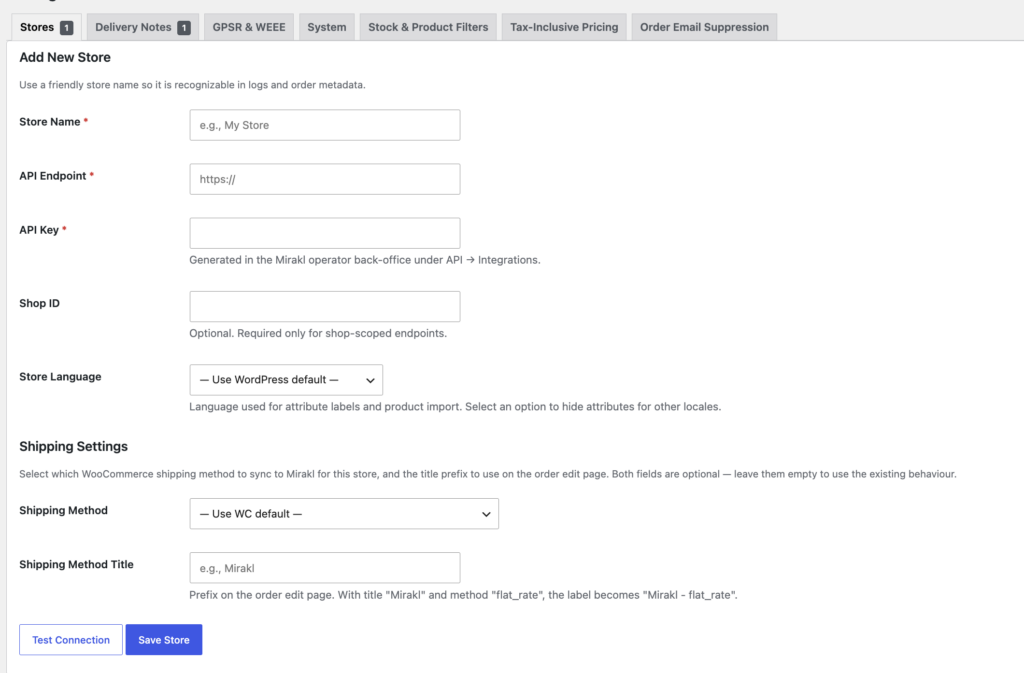
The Store Language setting is important because it controls locale-specific filtering in the attribute mapping UI — values labelled for other locales (e.g., [ro_RO]) are automatically hidden from view.
- Click Save Store
- Use the Test Connection button on the Stores page to verify connectivity
Configuring Sync Intervals
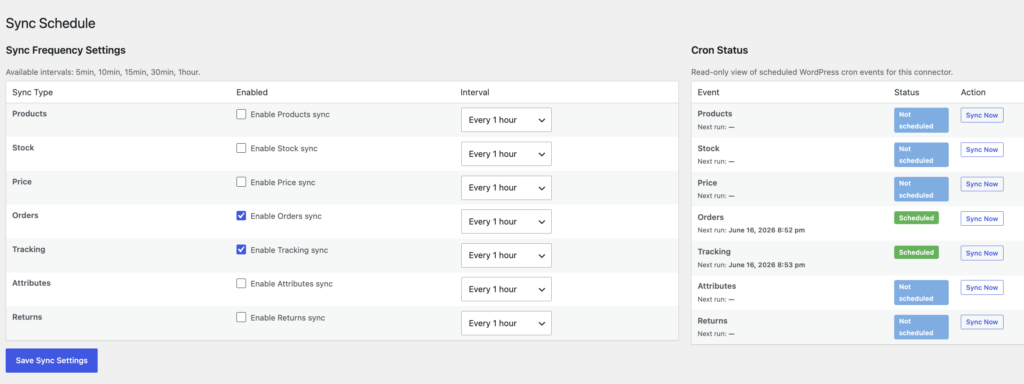
Navigate to Mirakl → Sync Schedule to configure when and how often synchronization runs:
| Sync Type | Default | Available Intervals |
|---|---|---|
| Orders | Every hour | 5, 10, 15, 30 min, hourly |
| Stock | Every hour | 5, 10, 15, 30 min, hourly |
| Prices | Disabled | 5, 10, 15, 30 min, hourly |
| Products | Disabled | 5, 10, 15, 30 min, hourly |
You can also trigger a manual sync at any time from the Sync Schedule page.
Product Management
Product Export
The product export system pushes your WooCommerce products to Mirakl marketplaces. Only published, active products are exported.
How it works:
- Products marked as active for Mirakl (
_mirakl_activepostmeta) are included in the export - WC SKUs are resolved to Mirakl shop SKUs via the offer SKU cache (auto-populated from OF21 API)
- Product data includes: title, description, price, stock, images, categories, brand, GTIN
- The export format matches the Mirakl product import API (OF24)
Enabling Products for Mirakl
You can control which products sync to Mirakl:
- Per-product: Edit a product → General tab → check “Active in Mirakl”
- Bulk edit: Products list → Bulk edit → Set Mirakl Active status
- Bulk actions: Select products → Apply “Activate/Deactivate in Mirakl” bulk action
- Quick edit: Quick edit from the products list
A Mirakl column on the products list shows active/inactive status at a glance.
Brand & GTIN Fields
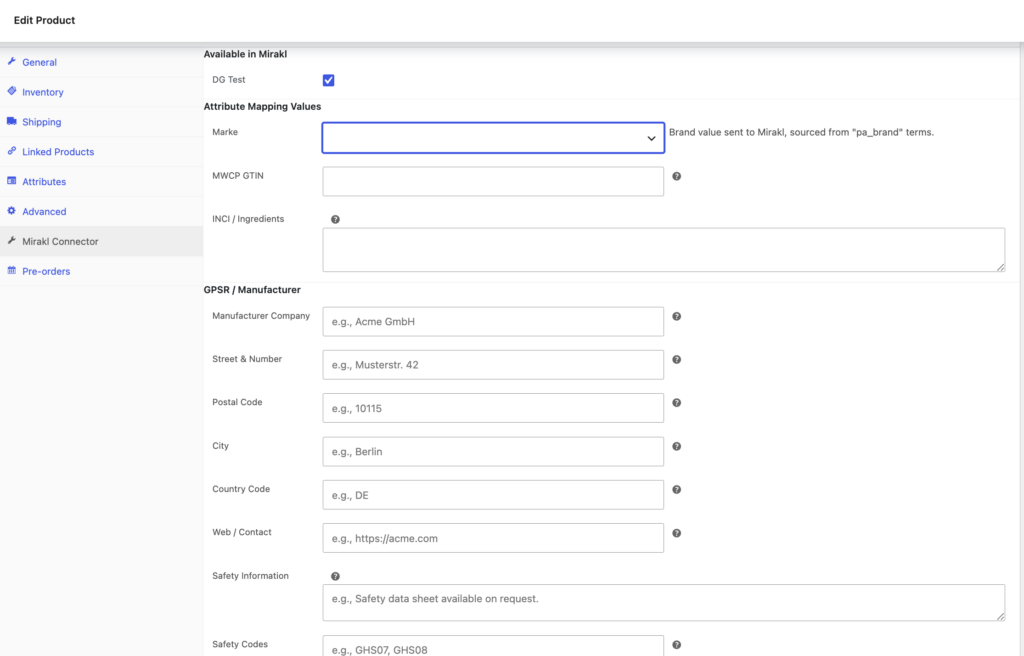
WooCommerce doesn’t include brand and GTIN fields by default. The plugin adds dedicated fields to each product’s General tab:
_mirakl_brand— Product brand name (maps to the Miraklbrandattribute)_mirakl_gtin— Global Trade Item Number (maps to the Miraklgtin/eanattribute)
These fields appear under the Product data → General tab. They’re required for most Mirakl marketplaces.
Category Mapping
Products are assigned to Mirakl categories using the _mirakl_category_{store_name} postmeta. The connector can import your Mirakl channel category tree into WooCommerce, creating a browsable category hierarchy in the attribute mapping UI.
Categories are stored in the {$prefix}mirakl_channel_categories table with their hierarchical structure (pipe-separated paths like Parfum | Damendüfte | Deodorants and numeric keys).

Attribute Mapping
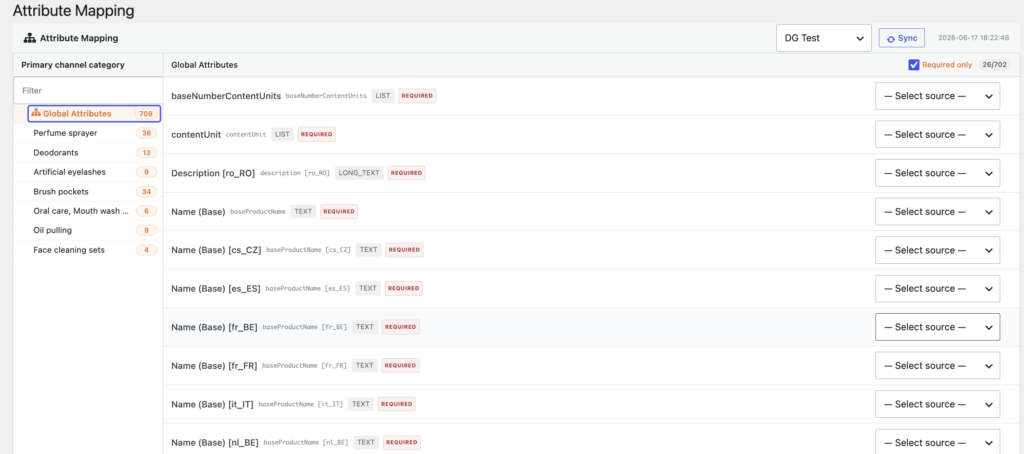
The attribute mapping page is a two-panel AJAX-driven UI that lets you visually map Mirakl product attributes to WooCommerce data sources.
Accessing the Mapping UI
Navigate to Mirakl → Attribute Mapping (available after attribute data is synced).
First-Time Sync
Before you can map attributes, you need to sync the Mirakl attribute definitions:
- Select a store from the dropdown
- Click Sync Now — this calls the Mirakl PM11 API to download all operator attributes
- The VL11 API is also called to fetch value lists for dropdown/selection attributes
- Once complete, the attribute tree appears in the left panel
How Mapping Works
The UI has two panels:
| Panel | Content |
|---|---|
| Left | Category hierarchy tree — browse by Mirakl product category |
| Right | Attribute cards — each card shows a Mirakl attribute, its type, requirement level, and a WooCommerce source selector |
To map an attribute:
- Click a category in the left tree — attributes for that category load on the right
- Each attribute card has a dropdown to select a WooCommerce source:
pa_*— WooCommerce product attributes (taxonomies)__brand__— Brand postmeta field__gtin__— GTIN postmeta field__title__— Product title
- Select a source — the mapping is auto-saved via AJAX
- Use the Required only filter to focus on mandatory attributes
Auto-Mapped Attributes
Some attributes are mapped automatically and hidden from the UI:
| Mirakl Attribute | WC Source |
|---|---|
name | Product title |
description | Product excerpt |
brand | _mirakl_brand |
gtin / ean | _mirakl_gtin |
image1 | Main product image |
variant-group-code | Variant group code |
Value Mapping
For attributes with predefined value lists (type LIST, MULTIPLE_VALUES_LIST, or CHECKBOX), you can map WooCommerce product values to Mirakl value codes:
- Select a WooCommerce source for the attribute
- Expand the value mapping section below the attribute card
- Each WC value from your products shows with an input for the corresponding Mirakl value
- Type to filter from the Mirakl value list (autocomplete via datalist)
- Changes are auto-saved on blur
The value mapping grid includes:
- Unmapped only toggle — focus on values that still need mapping
- Status indicators — green dot for mapped, visual feedback on save
- Locale filtering — Mirakl value lists are filtered to show only entries matching the store’s configured language
Inventory Sync
The inventory sync keeps stock levels current between WooCommerce and Mirakl marketplaces.
How It Works
- Direction: WooCommerce → Mirakl
- Trigger: Cron-based (configurable interval) or manual
- API: ST01 (stock update)
- Scope: Only products with
_mirakl_active = yes
The sync reads stock quantities from WooCommerce and pushes them to Mirakl. It respects WooCommerce’s stock management settings — products with “Manage stock” disabled can be assigned a max inventory value (999999).
Aside Inventory
You can set aside a quantity of each product for WooCommerce-only sales. For example, if you have 100 units and reserve 10 for your WooCommerce store, only 90 are reported to Mirakl.
Sync Lock
To prevent concurrent syncs for the same store and type, the plugin uses Mirakl_Sync_Lock. Each sync acquires a lock with a configurable TTL (default 360 seconds). If a sync is already running, subsequent requests are skipped.
Pricing Sync
The pricing sync uses the Mirakl PRI01 import API for bulk price updates.
How It Works
- The plugin gathers priced products (active in Mirakl)
- Submits a pricing import file to the PRI01 API
- Records the import in
{$prefix}mirakl_pricing_importswith status tracking - Polls the import status until complete
- Reports success/failure counts and detailed error reports
Sources
| Source | Trigger |
|---|---|
cron | Automated sync on configured interval |
manual | Manual sync from admin interface |
Import Status Tracking
Each pricing import is tracked with:
- Row count, success count, failed count
- Timestamps for submission, completion, and last poll
- Poll count (for monitoring long-running imports)
- Detailed error report when available
Orders
Automatic Order Import
Orders placed on Mirakl marketplaces are automatically imported into WooCommerce:
- Fetch: The cron job calls the Mirakl OR01/OR02 API to retrieve new orders
- Create: A WooCommerce order is created for each Mirakl order
- Link: The Mirakl order ID is stored in
_mirakl_order_idpostmeta - Products: Line items include product data from the Mirakl order
The order fetch window is managed automatically:
- First run: Looks back 9 days
- Subsequent runs: From the last successful fetch time
Order Status Transitions
When you update a WooCommerce order’s status, the connector can reflect that change in Mirakl:
- Completed → Triggers shipment notification to Mirakl (calls
handle_order_shipped()) - Tracks the status in
{$prefix}mirakl_orders
Manual Order Actions
From the WooCommerce order edit page, you can perform marketplace actions:
| Action | Description |
|---|---|
| Accept | Accept an order on the marketplace |
| Refuse | Refuse an order with a reason |
| Ship | Submit tracking information |
| Delivery Note | Generate and download a PDF delivery note |
| Refund | Process a refund to the marketplace |
These actions appear in the “Mirakl Actions” metabox when the order has a _mirakl_order_id meta value.
Email Suppression
WooCommerce automatically sends order confirmation emails. For Mirakl-imported orders, these are suppressed because the marketplace handles customer communication. The plugin hooks into four WooCommerce email triggers:
customer_on_order_receivedcustomer_on_order_completedcustomer_on_order_processingcustomer_on_order_on_hold
Order Number Formatting
Orders imported from Mirakl display with the Mirakl order ID as the order number, making them easily identifiable in your WooCommerce order list.
Delivery Notes
The connector includes a built-in PDF delivery note generator — no external service calls or API subscriptions required.
Architecture
- Library: Dompdf v3.1 — renders HTML+CSS directly to PDF
- Composer: Dompdf is lazy-loaded only at PDF render time (not on every page load)
- Trigger: Via
admin-post.php?action=mirakl_delivery_note&order_id=N&store_name=S
Per-Store Configuration
Each store can have its own delivery note settings:
| Setting | Description |
|---|---|
| Logo | Upload a store logo via WordPress Media Library (auto-resized to 200×70px) |
| Language | Choose from: DE, EN, FR, NL, ES |
| Footer | Custom footer text (falls back to language default) |
Generated Document
The delivery note is a professional A4 portrait document with:
- Store logo (right side, 200×70px)
- Shipping address (left)
- Order info table (right): order number, partner order, order date, delivery note date
- Product table: position, quantity, SKU, description, return quantity, return reason
- Return reason code grid (3-column layout)
- Numbered return instructions
- Footer with store details
- Pure black and white (no colors)
Multi-Language Support
Built-in translations for 5 languages: German (default), English, French, Dutch, Spanish. The template adapts all labels, headers, instructions, and footer text to the selected language.
Refunds
The refund system processes marketplace refunds directly from WooCommerce.
- Navigate to the WooCommerce order with a Mirakl order ID
- Use the Refund action in the Mirakl Actions metabox
- Enter the refund amount and reason
- The refund is processed via the Mirakl RE01 API
- The sync history is updated with the result
Refunds are tracked in {$prefix}mirakl_sync_history with type return.
Carrier Management
Carrier codes are synchronized from Mirakl to WooCommerce for accurate tracking on marketplace orders.
How It Works
- Fetch: The connector calls the Mirakl CA01 API for the carrier list
- Store: Carriers are saved to
{$prefix}mirakl_carrierswith code, label, standard code, and tracking URL - Map: Carrier mappings per store+channel are stored in
{$prefix}mirakl_carrier_mapping - Use: When shipping an order, the carrier code is included in the tracking update
Carrier Fields
| Field | Description |
|---|---|
code | Mirakl carrier code |
label | Human-readable carrier name |
standard_code | Standardized carrier identifier |
tracking_url | URL template for package tracking |
Cron & Automation
Custom Intervals
The plugin registers custom cron intervals:
mirakl_5min— Every 5 minutesmirakl_10min— Every 10 minutesmirakl_15min— Every 15 minutesmirakl_30min— Every 30 minutes
Scheduled Jobs
| Job | Hook | Purpose |
|---|---|---|
| Order Import | mirakl_connector_orders_import_cron | Fetch new marketplace orders |
| Tracking Update | mirakl_connector_tracking_update_cron | Sync tracking numbers back |
| Stock Sync | mirakl_connector_auto_stock_sync_cron | Push inventory levels |
| Price Sync | mirakl_connector_prices_sync_cron | Submit pricing imports |
| Product Sync | mirakl_connector_products_sync_cron | Export product catalog |
Rescheduling
When you change sync intervals on the Sync Schedule page, all cron hooks are cleared and re-registered with the new intervals. You can also trigger any sync type manually.
Database Schema
The plugin creates its own set of database tables (prefixed with {$wpdb->prefix}mirakl_) for reliable, performant data management:
| Table | Purpose |
|---|---|
mirakl_api_settings | Per-store API credentials and configuration |
mirakl_orders | Mirakl order-to-WC-order mapping |
mirakl_sync_history | Audit trail of all sync operations |
mirakl_carriers | Carrier codes and tracking URLs |
mirakl_carrier_mapping | Per-store carrier mappings |
mirakl_channel_categories | Category hierarchy from Mirakl |
mirakl_product_mappings | Product ID cross-references |
mirakl_offer_sku_cache | SKU resolution cache (auto-populated from OF21) |
mirakl_pricing_imports | Pricing import lifecycle tracking |
mirakl_attributes | Cached attribute definitions (PM11 + VL11) |
mirakl_fetch_times | Order/entity fetch timestamps |
mirakl_tracking_update_times | Tracking sync timestamps |
All schema changes are non-destructive — they add columns and tables without removing existing data.
Security
The plugin follows WordPress security best practices:
- Capability checks: All admin pages and AJAX handlers check
manage_optionsormanage_woocommerce - Nonce verification: Every form and AJAX request includes a nonce check (
check_ajax_referer) - Input sanitization: All user inputs are sanitized with WordPress functions (
sanitize_text_field,esc_url_raw, etc.) - Output escaping: All dynamic data is escaped with
esc_attr(),esc_html(),esc_url() - Prepared SQL queries: All database queries use
$wpdb->prepare()to prevent SQL injection - API key storage: API keys are stored in the database (encrypted at rest via WordPress)
- WP_Error convention: API errors use WordPress’s standard
WP_Errorclass - User-Agent: Plugin identifies itself as
Mirakl Connector/{version}— no internal URL leakage
Admin Dashboard
Dashboard Page
The Mirakl → Dashboard gives you an at-a-glance overview:
- Store count and status
- Last sync times
- Active stores summary
API Health
The Mirakl → API Health page lets you:
- Test API connectivity for each store
- View API credential status
- Diagnose connection issues
Sync Logs
The Mirakl → Sync Logs page provides a full audit trail:
- Filter by store, sync type, and status
- View success, failure, and pending operations
- Error messages for failed syncs
- Timestamps for every operation
Frequently Asked Questions
How many Mirakl stores can I connect?
There’s no hard limit. Each store has its own API credentials, sync settings, and attribute mappings. You can manage dozens of stores from a single WooCommerce installation.
Does the plugin support multiple currencies?
Yes. Each Mirakl store can have its own currency, configured in your Mirakl settings. The connector passes through the currency information with each order.
How are conflicts handled if the same product is updated in WooCommerce and on the marketplace simultaneously?
The sync lock prevents concurrent operations for the same store+type combination. For data conflicts, WooCommerce is treated as the source of truth for inventory and pricing.
Can I selectively sync only certain products?
Yes. Use the per-product “Active in Mirakl” checkbox, the bulk activate/deactivate actions, or the product filter option to include/exclude specific SKUs.
Do I need to install any additional software on my server?
No. The plugin includes all dependencies via Composer, including the Mirakl SDK and Dompdf. No external services or server extensions are required beyond the standard PHP WordPress stack.
What happens if a sync fails?
Failed syncs are logged in the sync history with error messages. The next scheduled sync retries automatically. For pricing imports, failed rows are reported with detailed error reports.
Can I use the delivery note generator in languages other than German?
Yes. The delivery note supports 5 languages: German, English, French, Dutch, and Spanish. Per-store language settings can be configured on the Stores page.
Troubleshooting
Connection Test Fails
- Verify your API endpoint URL is correct (should end in
.mirakl.net) - Confirm the API key has the required permissions
- Check that your server can make outbound HTTPS requests
- Look for firewall rules blocking the Mirakl API domains
Products Not Syncing
- Confirm the product has “Active in Mirakl” checked
- Verify brand and GTIN fields are filled in (required attributes)
- Check the sync logs for error messages
- Ensure the store’s API credentials are valid
- Run a manual sync to trigger immediate processing
Orders Not Importing
- Check that order sync is enabled in Sync Schedule
- Verify the minimum order date range (first run looks back 9 days)
- Check the sync history for API errors
- Confirm the order exists in your Mirakl operator dashboard
Delivery Note PDF Not Generating
- Ensure the
domandgdPHP extensions are installed - Check that the Composer autoloader can find Dompdf
- Verify the store has a delivery note configuration saved
- Check your server’s temporary directory has write permissions
Requirements Summary
| Requirement | Minimum |
|---|---|
| WordPress | 5.6+ |
| WooCommerce | 3.0+ |
| PHP | 8.3+ |
| PHP Extensions | json, mbstring, gd, dom |
| Memory Limit | 256MB (512MB recommended for large catalogs) |
| Composer | Development only (dependencies committed to repo) |
| SSL | Required for API communication |
Changelog Highlights
| Version | Date | Key Changes |
|---|---|---|
| 5.0.0 | 2026 | PHP 8.3 support, Dompdf v3.1, multi-locale value list filtering, security hardening |
| 5.1.0 | 2025 | WordPress-native HTTP handler, middleware retry/rate-limit stack, delivery note PDF generator |
| 3.0.0 | 2024 | Multi-store architecture, PM11 attribute sync, VL11 value lists, cron automation |
Additional Resources
- Mirakl Developer Portal: https://developers.mirakl.net
- Mirakl MMP API Reference: Official API documentation for all endpoints
- WooCommerce REST API Docs: For custom integration development
- Support: Contact your plugin provider for direct assistance
The Mirakl WooCommerce Connector Pro is built on the official mirakl/sdk-php-shop library and follows WordPress coding standards. All product and company names are trademarks of their respective holders.
Please reach out to us for implementation or customization here